Before you go, let us know your thoughts!
Thank you for using SwitchboardFREE. We'd like to invite you to leave us a review with an independent 3rd party, Reviews.co.uk.
We use cookies to run our website, analyse its use and personalise ads.
Thank you for using SwitchboardFREE. We'd like to invite you to leave us a review with an independent 3rd party, Reviews.co.uk.
1. Click here to download the SwitchboardFREE VoIP Softphone (.exe file)
2. Once you download the file, double click on it to begin the installation process.
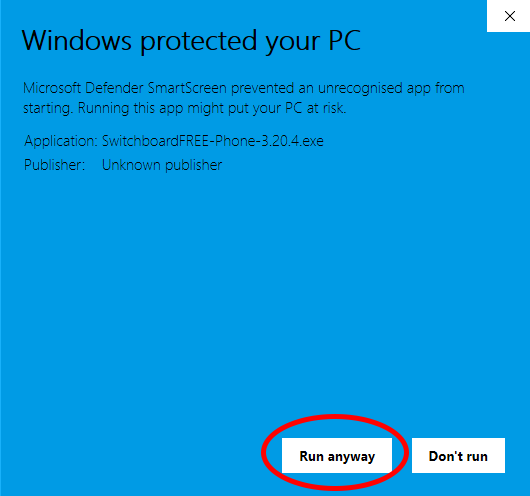
3. You may get the below warning, click "More Info" and then at the bottom click "Run anyway"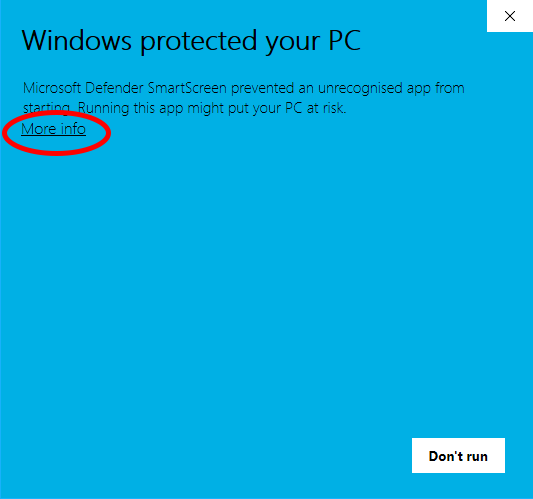
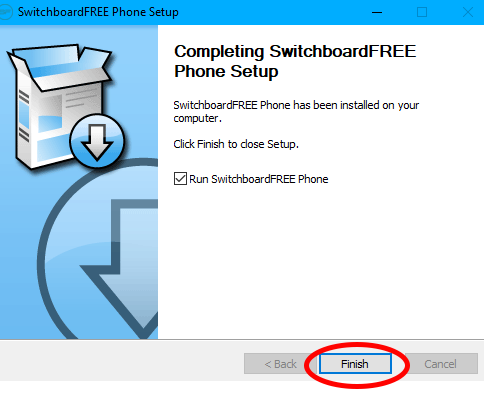
4. Continue through with the installation steps and click Finish.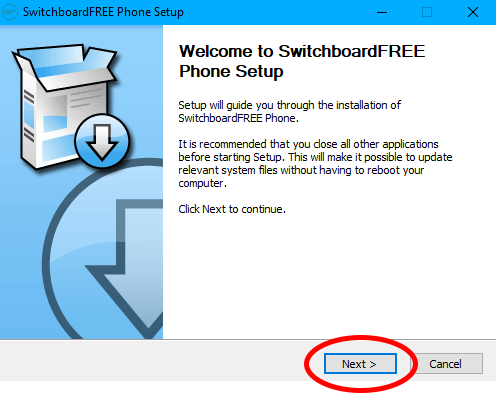
5. You will require your SwitchboardFREE outbound settings for the next step to find these follow the instructions below.
a. Login to your SwitchboardFREE account. Once logged in, from the top navigation click "My Users" and then "List Users".
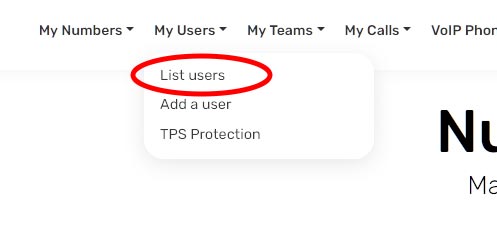
b. Click the highlighted "eye icon" on the user you would like the details for.

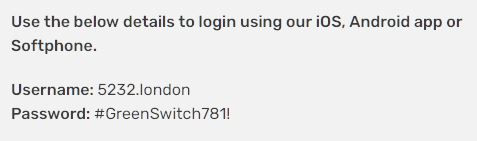
c. You will now see your SwitchboardFREE user details
6. Enter the following details and click "Save"
a. Phone username: That's your ID, followed by a "." (fullstop) and then your domain name.
In our example above our ID is number "5232", and the domain name is the word "london", so our username will look like this: 5232.london
b. Password: In our example i's #GreenSwitch781!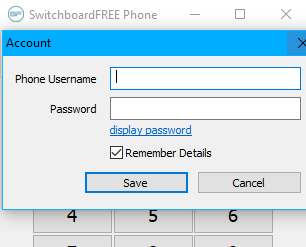
7. This will now show that you are online at the bottom and will enable you to make calls.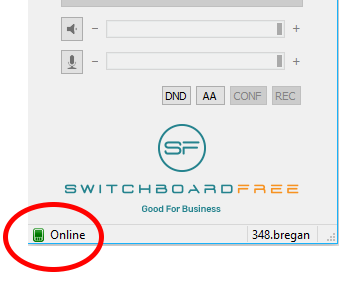
8. If you have synced your contacts with the SwitchboardFREE Phone smartphone app (iOS, Android) you will be able to find your contacts under the Contacts tab.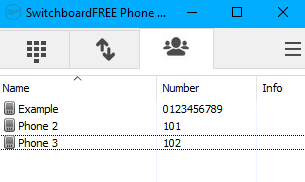
A blind transfer is when you transfer the caller to another users extension without speaking to them first.
How to perform a blind transfer?
Press the transfer button or press #7, followed by the extension number you wish to transfer the call to.
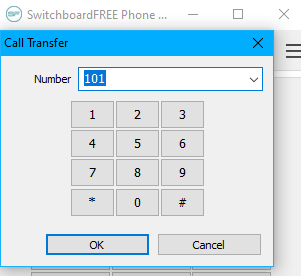
If a call is not answered by the final recipient in 10 seconds then call will return to the original recipient.
An assisted transfer is when you transfer the caller to another users extension, but before the call is put through, you will be able to speak to the other user before transfering the caller to them. This is useful to make a polite introduction.
How to perform a assisted transfer on your:
Softphone, Desk phone & SwitchboardFREE Phone App
If a call is not answered by the final recipient in 10 seconds then call will return to the original recipient.