Before you go, let us know your thoughts!
Thank you for using SwitchboardFREE. We'd like to invite you to leave us a review with an independent 3rd party, Reviews.co.uk.
We use cookies to run our website, analyse its use and personalise ads.
Thank you for using SwitchboardFREE. We'd like to invite you to leave us a review with an independent 3rd party, Reviews.co.uk.

More integrations
Select apps you use to see guided workflows
In partnership with

Zapier automates 2,000+ apps in millions of ways. Let's find a way to save you time.
1Sign in/sign up to Zapier and head to https://zapier.com/app/dashboard
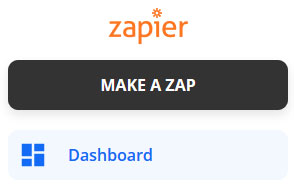
2At the side, click ‘Make a Zap’.
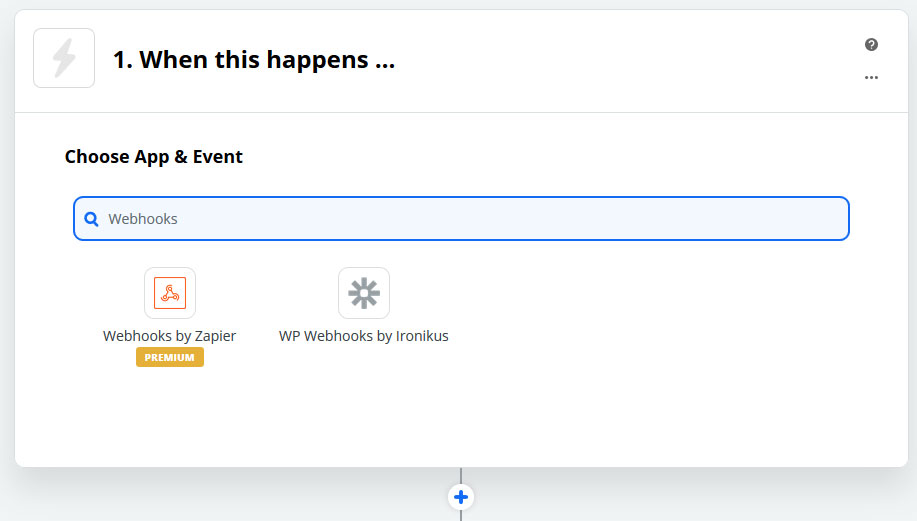
3In the search box, search for ‘Webhooks’ and select ‘Webhooks by Zapier’.
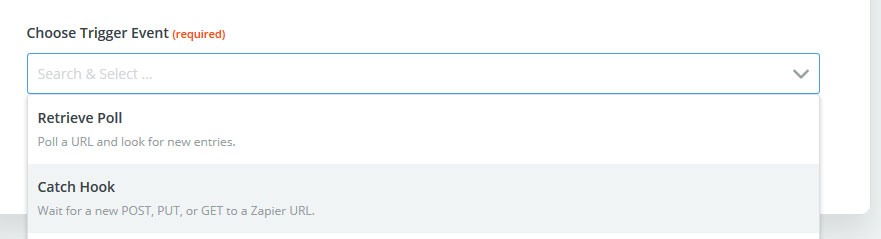
4Under the ‘Choose Trigger Event’, select ‘Catch Hook’ and click ‘Continue’.
5Copy your Custom Webhook URL and keep it safe (you will need it in the next step). Click ‘Continue’.
6Head to SwitchboardFREE in a new tab and Login to your account
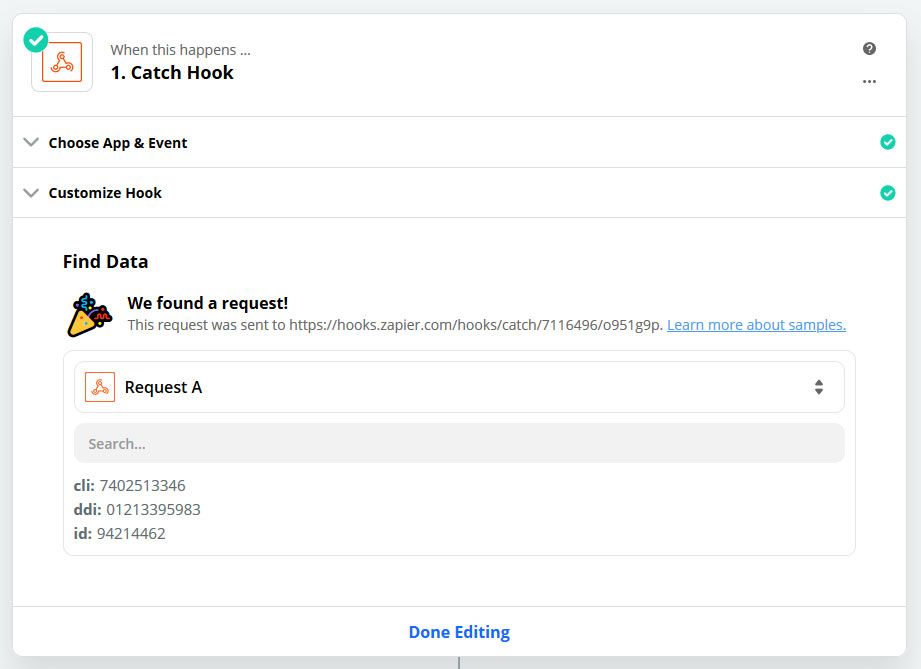
9Make a call to your SwitchboardFREE number and head back to Zapier.
10Click ‘Test & Review’ and wait until it says “We found a request!”. Click ‘Done Editing’.
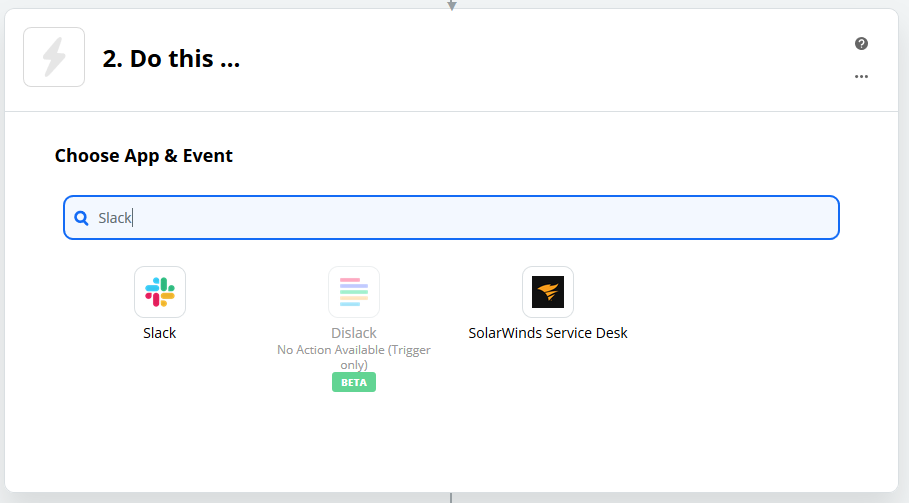
11In the search box, search for ‘Slack’ and select ‘Slack’ when the name is displayed.
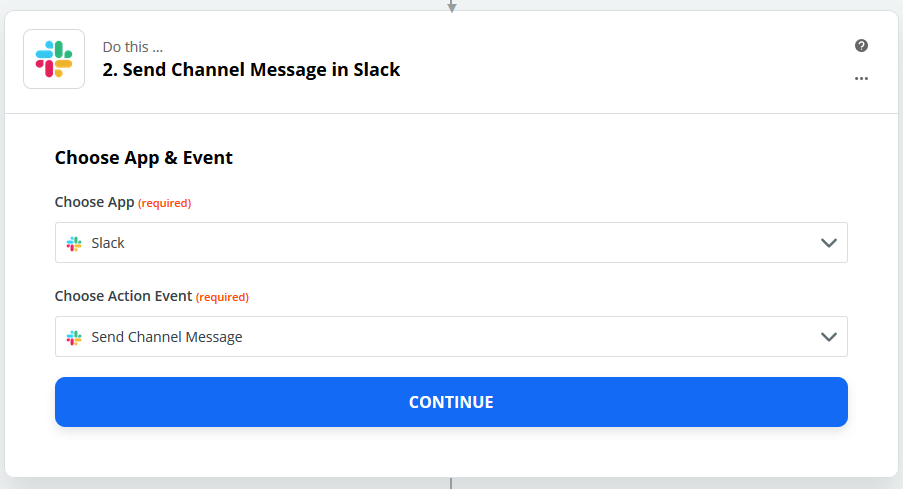
12Under ‘Choose Action Event’, select ‘Send Channel Message’, and click ‘Continue’.
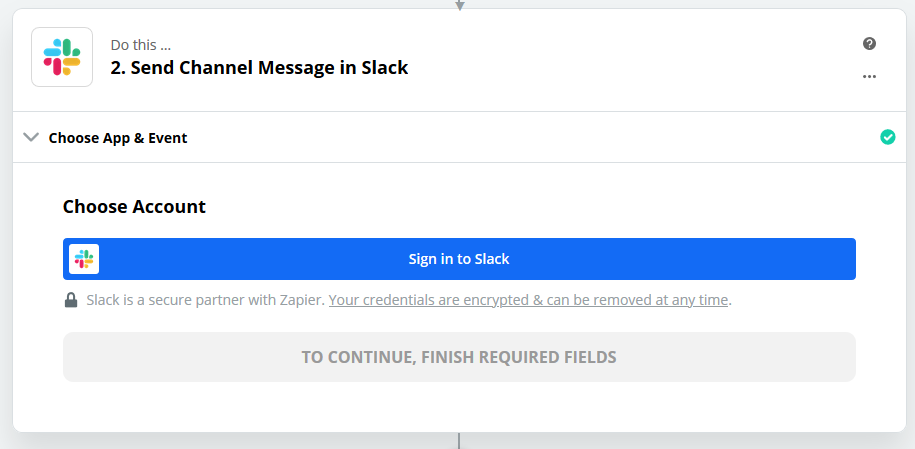
13Click ‘Sign in to Slack’, and log in with your account and click ‘Continue’.
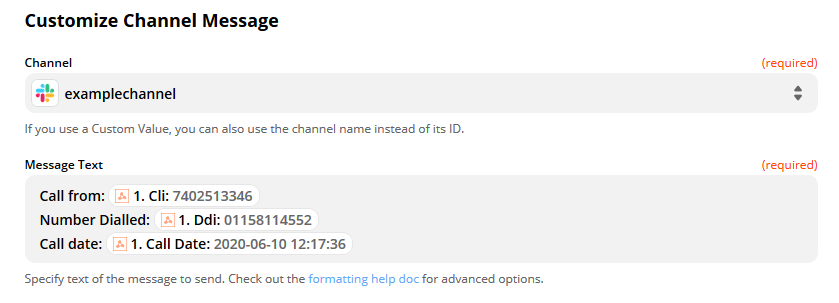
14Enter the following details and click ‘Continue’.
15Click ‘Test & Review’ and check that the record has been added to the leads section of Slack.
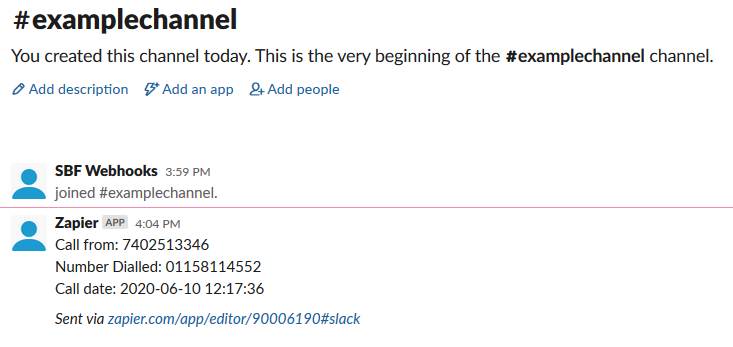
16Click ‘Done Editing’ and turn the ‘Zap’ on in the top right corner. You’re now all ready and set to go!